Arc Raiders Best Settings for Visibility: Spot Enemies Faster
Updated Published
On this page
Arc Raiders is much easier to read when you cut back the settings that add haze, blur, and unnecessary visual noise. This guide focuses on competitive visibility, not just raw FPS, so you can spot enemies faster and track fights more clearly.
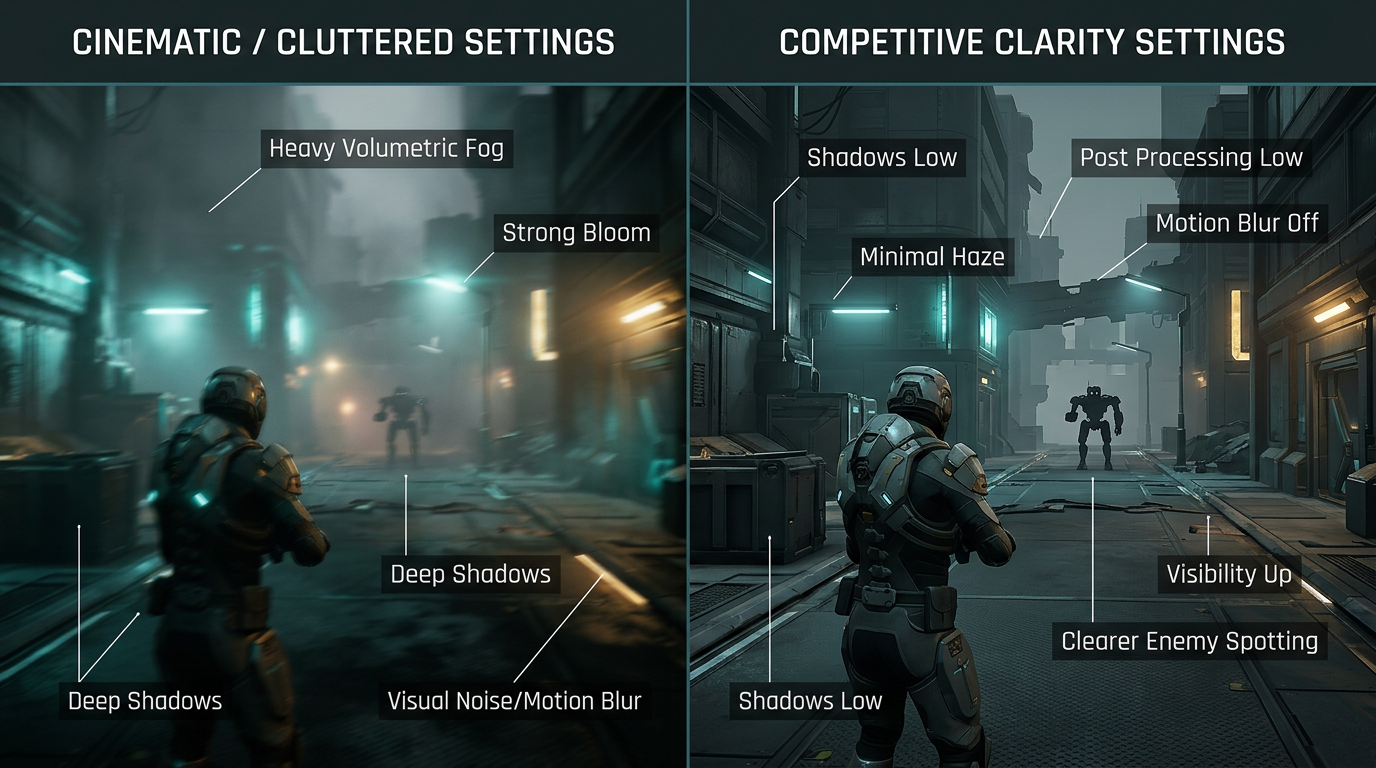
Competitive settings should help you see more, not just benchmark higher.
Arc Raiders best settings for visibility
| Setting | Recommended value |
|---|---|
| Display Mode | Fullscreen |
| Resolution | Native if stable, otherwise use quality upscaling |
| Field of View | 90 to 100 |
| Shadows | Low |
| Effects | Low |
| Post Processing | Low |
| Motion Blur | Off |
| Depth of Field | Off |
| Bloom | Off |
| Lens Flare | Off |
| Chromatic Aberration | Off |
| Film Grain | Off |
| View Distance | High |
These settings keep distant targets easier to read without drowning the screen in effects.
Why shadows and post processing hurt visibility
Shadows, bloom, and other post-processing effects can make the game look more cinematic, but they often hide useful detail in real fights. Arc Raiders already has enough environmental complexity without extra visual fog layered on top.
If you only change three settings first, make them:
- Shadows Low
- Post Processing Low
- Motion Blur Off
Best FOV for visibility
Field of view is a balance between awareness and target size.
- lower FOV gives bigger targets but less peripheral vision
- higher FOV gives better awareness but can make enemies look smaller
For most players, 90 to 100 is the best range. If you play very close to your monitor, lean slightly lower. If you want more flank awareness, lean slightly higher.
Resolution and upscaling
Do not blindly chase native resolution if it makes heavy fights unstable. Visibility gets worse when the game is stuttering or dropping frames at the exact moment you need to track a target.
Good rule
- use native if performance is already stable
- use Quality upscaling for the cleanest balance
- use Balanced only if you need the extra FPS
For a deeper breakdown, read Arc Raiders DLSS, FSR, and Frame Generation Best Settings.
How to improve visibility in Arc Raiders: cut the clutter
To improve visibility in Arc Raiders, start by removing the effects that actively hide information. These are the usual visibility killers:
- motion blur
- heavy bloom
- film grain
- chromatic aberration
- overly high effects settings
Turn them down or off unless you care more about presentation than competitive readability.
Brightness and monitor settings
In-game visibility is only part of the picture. If your monitor is crushing dark scenes or adding too much latency, your settings will never feel as clean as they should.
Quick checks
- Use the monitor’s gaming or standard mode rather than a heavy movie preset.
- Keep sharpness reasonable so edges stay clean instead of overprocessed.
- Adjust black equalizer or shadow detail carefully if your monitor supports it.
This pairs well with How to Optimize Your Monitor for Gaming.
Driver-level color boost
A modest Digital Vibrance bump (NVIDIA Control Panel → Display → Adjust desktop color settings, around 60-70%) or Saturation increase in AMD Adrenalin makes player silhouettes pop against Arc Raiders’ muted environments. Setup details are in the best NVIDIA Control Panel settings for gaming and best AMD Adrenalin settings for gaming.
Visibility settings by hardware tier
Low-end or mid-range PC
- Shadows: Low
- Effects: Low
- Post Processing: Low
- View Distance: Medium or High depending on FPS
- Upscaling: Quality or Balanced
High-end PC
- keep the visibility-reducing effects off anyway
- use native resolution or quality upscaling
- keep view distance high
Better hardware should not tempt you into turning on every distracting visual effect.
If the game still feels hard to read
If you lowered the right settings but fights still feel messy, the problem may be performance consistency or audio clutter rather than visibility alone.
Read these next:
- Arc Raiders Stuttering Fix: Stop FPS Drops and Frame Time Spikes on PC
- Arc Raiders Best Audio Settings for Footsteps and Directional Sound
- Arc Raiders Best Controller Settings for Aim, Deadzone, and Responsiveness
Related guides
- Arc Raiders Optimization Guide: Best Settings for Maximum FPS and Performance
- Arc Raiders DLSS, FSR, and Frame Generation Best Settings
- How to Optimize Your Monitor for Gaming
- How to Minimize Input Delay for Competitive Gaming
The best Arc Raiders visibility settings strip away the effects that hide enemies and muddy fights. Keep the image clean, preserve stable frame pacing, and use FOV and upscaling settings that help you track targets instead of just chasing prettier screenshots.
Frequently asked questions
What are the best settings for visibility in Arc Raiders?
Shadows Low, Post Processing Low, motion blur, bloom, film grain, and chromatic aberration off, View Distance High, and FOV between 90 and 100. These cut the effects that hide enemies most.
How do I improve visibility in Arc Raiders?
Turn off the cinematic effects first — motion blur, depth of field, film grain — then lower shadows and post processing. On the monitor side, use a gaming preset and raise shadow detail or black equalizer if dark areas crush.
Does FOV affect visibility in Arc Raiders?
Yes, in both directions. Higher FOV shows more of your surroundings but makes distant enemies smaller. 90 to 100 is the sweet spot for most players and monitor distances.
Does upscaling make enemies harder to see in Arc Raiders?
Aggressive presets can. Performance mode softens distant detail, which hurts target reads. Stick with native resolution or the Quality preset unless you genuinely need the extra FPS.