How To Optimize Your Monitor For Gaming + Reduce Input Delay
Updated Published
On this page
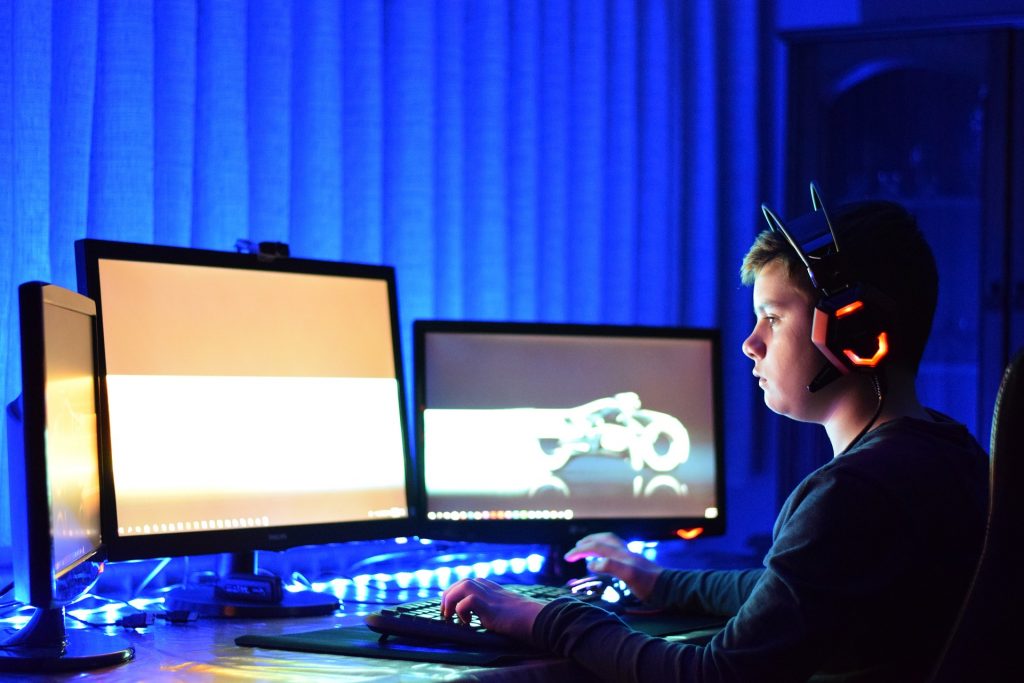
Buying a fast gaming monitor isn’t enough — out of the box it’s often running at 60 Hz with lag-adding processing enabled. Here’s how to optimize your monitor settings for the lowest input delay and the best visibility.
Reduce monitor latency
- Set the actual refresh rate — Windows often defaults new monitors to 60 Hz. Go to Settings → System → Display → Advanced display and select the highest refresh rate your monitor supports.
- Enable game mode on the monitor — most gaming monitors have an OSD “game mode” that bypasses image processing and cuts display lag.
- Disable V-Sync — V-Sync prevents tearing but adds input lag. Turn it off in games and use adaptive sync (G-SYNC / FreeSync) with a frame cap instead.
- Update your drivers — keep GPU drivers current; they control the display pipeline.
- Close background programs — background load increases frame time variance, which feels like input lag. Debloating Windows helps here.
- Consider resolution — if your GPU can’t keep FPS above your refresh rate, a lower resolution reduces GPU load and end-to-end latency.
- Upgrade if needed — if you’re on a 60 Hz office monitor, a 144 Hz+ gaming monitor is the single biggest responsiveness upgrade you can buy.
Optimize visuals for competitive play
- Refresh rate first — the higher the refresh rate (144 Hz, 240 Hz+), the smoother and more responsive the experience. Always confirm it’s actually set in Windows.
- Brightness and contrast — you should see detail in dark corners without blowing out bright areas. Many pros raise brightness slightly above “accurate” for visibility.
- Native resolution — run the monitor at its native resolution for sharpness. (Some competitive players use stretched resolution deliberately — that’s a separate trade-off.)
- Color/vibrance — boosting digital vibrance (NVIDIA Control Panel or AMD Adrenalin) makes enemies pop against backgrounds in shooters.
- Calibrate — an online calibration test gets you close; a hardware calibration tool gets you accurate. For gaming, consistency matters more than perfect accuracy.
Summary
Set the real refresh rate, enable the monitor’s game mode, and kill V-Sync — those three changes remove most display-side latency for free.
The display is only half the chain: download Tier1Suite, a free utility that optimizes Windows timer resolution so inputs register faster and frames arrive more consistently, or read the full timer resolution guide. For everything else in the chain, see How to minimize input delay for competitive gaming.
Frequently asked questions
How do I set the correct refresh rate on my gaming monitor?
Windows often defaults new monitors to 60Hz. Go to Settings → System → Display → Advanced display and select the highest refresh rate your monitor supports. Confirm this sticks across reboots.
How does V-Sync affect input delay?
V-Sync eliminates tearing but adds significant input lag. Disable it in games and use adaptive sync (G-SYNC/FreeSync) with an FPS cap (just below your refresh rate) instead for tear-free gaming without latency.
Should I enable game mode on my monitor?
Yes. Most gaming monitors have an OSD 'game mode' that bypasses image processing and cuts display lag. Enable it to reduce input latency and improve responsiveness.
How can I improve visibility in competitive games?
Raise brightness slightly above 'accurate' (pros do this), boost digital vibrance in driver settings (NVIDIA Control Panel or AMD Adrenalin) to make enemies pop, run native resolution for sharpness, and optimize contrast.
What's the single biggest monitor upgrade for responsiveness?
Upgrading from 60Hz to 144Hz+ (ideally 240Hz) is the biggest responsiveness improvement. High refresh rate makes motion smoother and more responsive than any setting adjustment.