Testing PC Components Using Benchmarking Tools
Updated Published
On this page
The quickest way to identify a failing or underperforming component is a benchmark: it tests your hardware and compares your results against thousands of PCs with the same parts. If your GPU scores in the 5th percentile among identical GPUs, you’ve found your problem.
Step 0: Reboot your PC
Reboot before benchmarking. A clean slate — no lingering background processes or memory pressure — gives accurate, repeatable results.
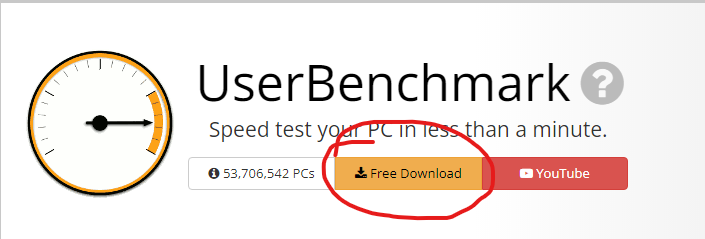
Step 1: Download a benchmarking tool
UserBenchmark is the fastest all-in-one option — it tests CPU, GPU, RAM, and drives in a few minutes and compares each against identical hardware. (Take its rankings between different products with a grain of salt; its percentile comparison against the same component is what we’re using here, and that part is solid. 3DMark and Cinebench are good supplements for GPU and CPU specifically.)
Step 2: Run the test
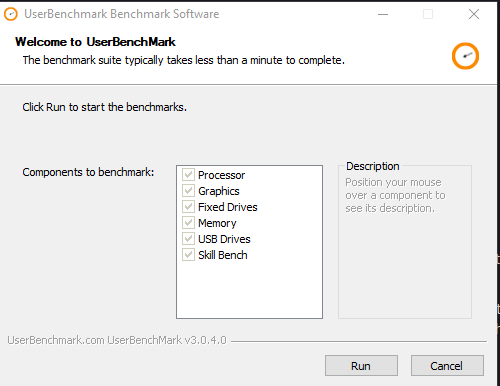
Run the benchmark with default options — it steps through each component automatically. The final “skill bench” is an aiming game; play it or skip it, it doesn’t affect your score.
Step 3: Analyze the results
When the run completes, a results page opens. The key number for each component is its percentile against identical hardware.
Example run: userbenchmark.com/UserRun/53717135
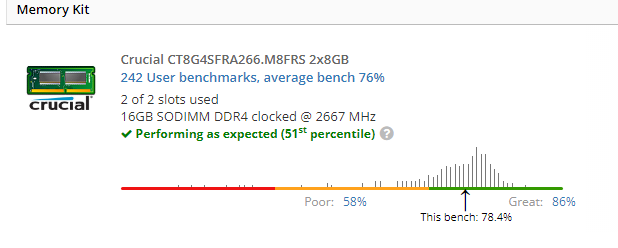
This RAM kit lands at the 51st percentile — faster than 51 of 100 machines with the same kit. Average, and perfectly normal.
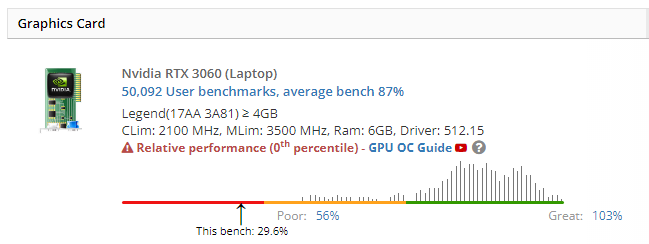
The GPU, however, is at the 0th percentile — performing worse than effectively every other copy of the same card. That points to a real problem: thermal throttling, a stuck power limit, missing drivers, or the game running on the wrong GPU.
As a rule of thumb: 40th percentile or higher is fine; below ~30th deserves investigation.
Step 4: Take action
Found the weak component? Fix it:
- GPU underperforming — update drivers, check temperatures, then see the Ultimate GPU Overclocking Guide (the same tools used for overclocking diagnose throttling).
- CPU underperforming — check cooling and background load; if it’s simply outmatched, see How to choose a CPU for your gaming PC.
- RAM slow — make sure XMP/EXPO is enabled in BIOS; DDR kits run at slow default speeds until you turn it on.
- Everything scores fine but games still feel bad — the issue is software, not hardware: debloat Windows and download Tier1Suite, a free tool that decreases input delay by optimizing Windows timer resolution (full guide).
Frequently asked questions
What's the best free benchmarking tool?
UserBenchmark is a fast all-in-one option—it tests CPU, GPU, RAM, and drives in minutes and compares results against identical hardware. 3DMark and Cinebench are good supplements for GPU and CPU specifically.
How do I know if my component is underperforming?
Compare your percentile score against identical hardware. If your GPU is at the 0th percentile vs 51st, it's underperforming. As a rule, 40th percentile or higher is normal; below 30th deserves investigation.
What should I do before running a benchmark?
Reboot your PC first. A clean slate with no background processes gives accurate, repeatable results and avoids false positives from memory pressure or lingering apps.
What causes a GPU to benchmark at 0 percentile?
Thermal throttling (overheating), a stuck power limit, missing or outdated GPU drivers, or the game running on the wrong GPU. Check cooling and update drivers first.
If my RAM is slow, what should I do?
Make sure XMP/EXPO is enabled in BIOS. DDR memory runs at slow default speeds until you manually enable high-speed mode in BIOS settings.