How to Debloat Windows for Gaming - More FPS in Fortnite, Apex, Warzone, COD, Valorant
Updated Published
On this page
This guide shows you how to debloat Windows for gaming — speed up your PC, reduce input delay, maximize frames, and free up storage. Everything here improves performance whether you’re gaming, browsing, or editing — but the biggest wins show up in CPU-bound competitive games like Fortnite, Apex, Warzone, and Valorant.
Why debloat Windows for gaming?
A fresh Windows install ships with dozens of preinstalled apps, telemetry tasks, and background services competing with your game for CPU time and RAM. None of them costs much alone, but together they cause exactly the thing competitive players hate: inconsistent frame times. Debloating won’t double your average FPS, but it reliably improves 1% lows and reduces random stutters — the difference between a game that benchmarks well and one that feels smooth. If your main symptom is intermittent freezes rather than general sluggishness, also check how to fix lag spikes in games.
Step 1: Create a restore point
Before removing anything, create a restore point so you can revert if something breaks or you don’t like a change.
- In the Start search box, type Create a restore point and open it.
- On the System Protection tab, select your system drive (usually
C:) and click Configure. - Enable Turn on system protection and set Max usage to 5–10% — enough to hold the restore point. Click Apply, then OK.
- Back on the System Protection tab, click Create, name it something like
before debloat, and click Create again.
With the restore point saved, you can safely debloat.
Step 2: Run a debloat script
Debloat scripts remove preinstalled apps (Candy Crush, Xbox widgets, OEM trials), disable telemetry, and stop unnecessary background services in one pass.
A well-maintained option is Win11Debloat (works on Windows 10 and 11). The classic Windows10Debloater by Sycnex is still widely used on Windows 10:
- Download the tool’s
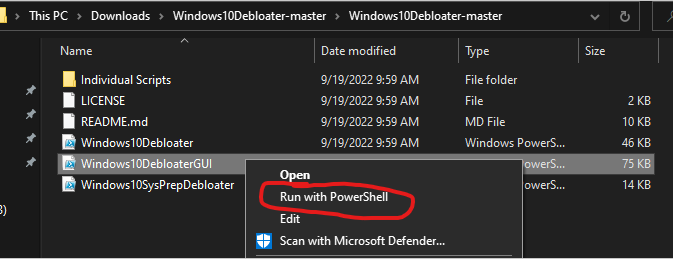
.zipfrom its GitHub releases page and extract it. - Right-click the GUI script (e.g.
Windows10DebloaterGUI) and choose Run with PowerShell.
- Either click Customize Blocklist to pick exactly what gets removed, or Remove All Bloatware for the one-click pass.
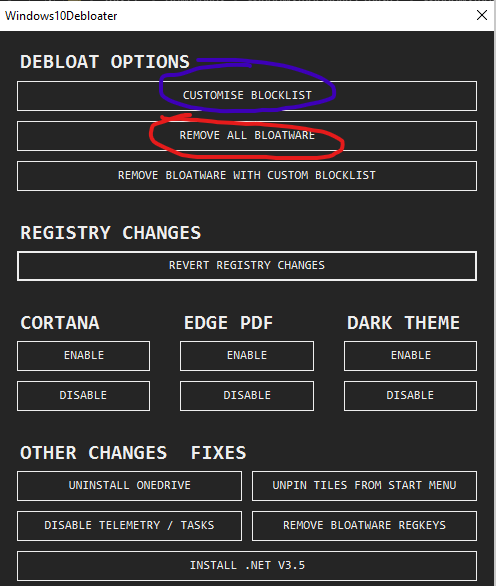
Tip: prefer the customize option the first time. Skip anything you actually use (e.g. Xbox Game Bar if you record clips with it).
Step 3: Manual cleanup the scripts miss
- Startup apps — open Task Manager → Startup apps and disable everything you don’t need at boot. Common offenders: OneDrive (if unused), Teams, Spotify, RGB software, printer utilities.
- Background apps — Settings → Apps → Installed apps, uninstall OEM utilities and trials you never use (McAfee/Norton trials, manufacturer “support assistants”).
- Xbox Game Bar capture — Settings → Gaming → Captures, turn off background recording if you don’t clip with it; it constantly buffers gameplay in the background.
- Widgets — right-click the taskbar → Taskbar settings and turn Widgets off; the feed runs a browser process in the background.
- Storage — Settings → System → Storage, run Temporary files cleanup and enable Storage Sense.
Step 4: Verify the gains
After debloating, open Task Manager on a fresh boot and check the Processes tab. A clean gaming PC should idle with noticeably fewer background processes and lower RAM usage than before. If a service you removed turns out to be needed, that’s what the restore point from Step 1 is for.
Next steps
Debloating frees CPU time and RAM; the next wins come from system tuning:
Frequently asked questions
Does debloating Windows actually improve gaming performance?
Yes, mainly in CPU-bound games. Removing background apps, telemetry, and startup programs frees CPU time and RAM, which shows up as better 1% lows and fewer stutters in games like Fortnite, Apex, Warzone, and Valorant.
Is it safe to debloat Windows for gaming?
Yes, if you create a restore point first and use a maintained script like Win11Debloat with the customize option. Skip anything you actually use, such as Xbox Game Bar if you record clips with it.
What is the best debloat script for Windows 11?
Win11Debloat by Raphire is well-maintained and works on Windows 10 and 11. It removes preinstalled apps, disables telemetry, and turns off unnecessary background services in one pass, with a customizable list.
What should I disable in Windows for more FPS?
Startup apps you don't need, Xbox Game Bar background recording, Widgets, OneDrive if unused, and OEM utilities. Together with a debloat script pass, these cut most of the idle CPU and RAM drain.