Best GPU Overclock Guide for Gaming
On this page
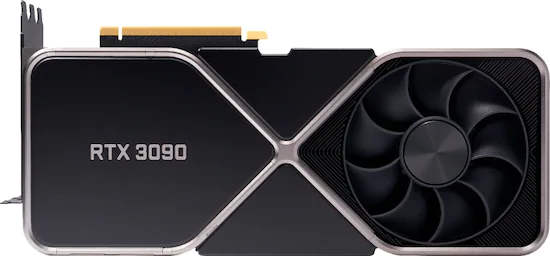
Overclocking your GPU is one of the easiest free performance wins in gaming. With the right core and memory clock speeds you can boost frames significantly — with minimal risk, thanks to modern GPUs’ built-in failsafes.
What does GPU overclocking mean?
Overclocking means gradually increasing your graphics card’s core and memory frequencies to boost performance. Like CPU overclocking, the process is: raise the frequency slightly, test stability with a benchmark, watch temperatures, repeat.
How to overclock your GPU
Step 1: Open your GPU overclocking tool
We’re using MSI Afterburner — download it from MSI here. The main dashboard displays your graphics chip’s current GPU Clock and Mem Clock, with temperature on the right. As a rule of thumb, keep GPU temperatures below 90°C.
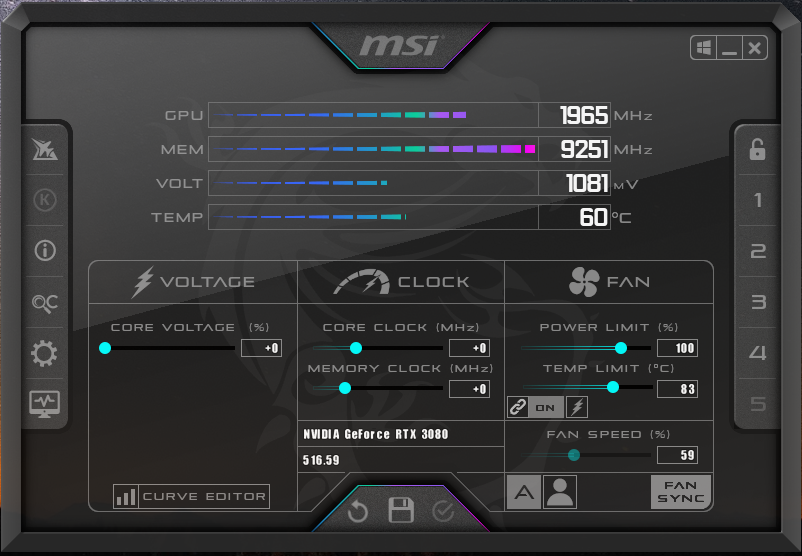
From here you have two options: find your optimal overclock manually through benchmark testing, or start from our suggested settings for your card.
Suggested overclocks by GPU
| GPU | Core Clock | Memory Clock |
|---|---|---|
| RTX 3060 | +90 MHz | +700 MHz |
| RTX 3070 | +115 MHz | +800 MHz |
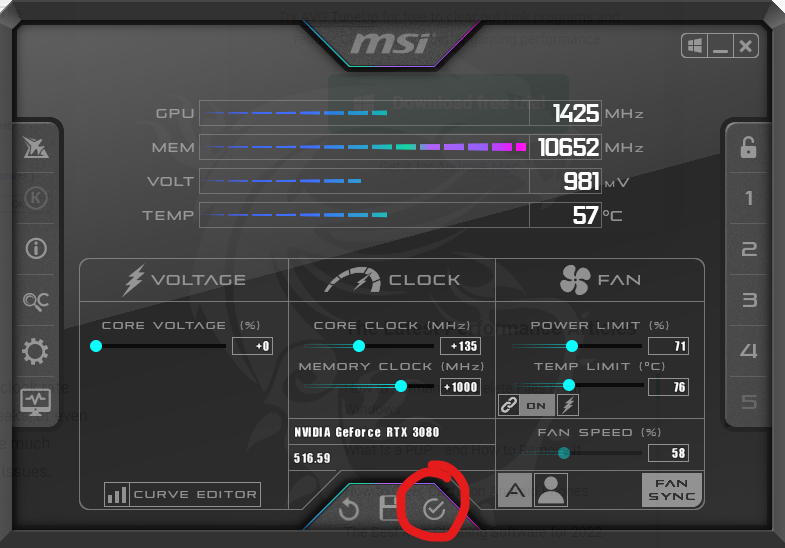
| RTX 3080 | +135 MHz | +1000 MHz |
| RTX 3090 | +150 MHz | +1100 MHz |
Every individual card is different (the “silicon lottery”), so treat these as starting points and still test for stability.
Step 2: Apply overclock settings
Core clock: start slowly — raise the core clock incrementally by 15–25 MHz and test for graphical artifacts like glitches, streaks, or crashes.
Memory clock: same approach — raise it by 25–50 MHz per step and test for issues.
Use the core clock and memory clock sliders in Afterburner to apply each step.
Step 3: Benchmark performance
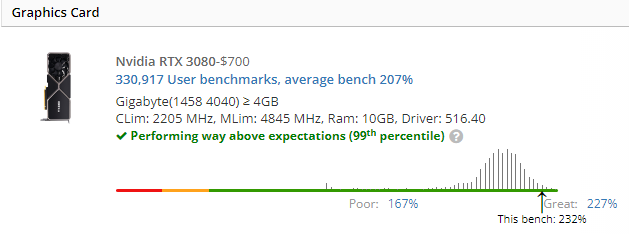
Following our component benchmarking guide, test how your graphics card performs against other cards of the same model.
Step 4: Keep tweaking and re-benchmarking
As long as frames are steady with no crashes or visual glitches, keep increasing the core clock by 15–25 MHz and memory clock by 25–50 MHz per step.
After each change, load your game and check for crashes or artifacts, then re-run the benchmark:
- Score decreased? Go back to the last stable settings — congratulations, you’ve found your optimal overclock. (Memory clocks past a certain point trigger error correction, which silently costs performance.)
- Score increased? Keep going.
Does overclocking a GPU increase FPS?
Yes — that’s the main benefit. The added compute from a GPU overclock helps your card push more FPS, especially at higher resolutions where the GPU is the bottleneck.
Is it safe to overclock your GPU?
Yes. Overclocking raises temperature and stress, but modern failsafe mechanisms kick in before damage occurs — if the card can’t handle it, it simply crashes or freezes. Lower the overclock a step and test again.
Most common overclocking mistakes
- Going too fast — big frequency jumps cause crashes, glitches, or black screens.
- Not testing — skipping the benchmark after each step means you won’t notice instability (or silent performance loss) until it bites.
- Overheating — overclocking increases heat output. Make sure your card’s cooling keeps it under ~90°C, and improve case airflow if needed.
- Leaving it always-on — save your overclock as an Afterburner profile and apply it for demanding games rather than running it 24/7.
- Expecting too much — a 10–20% uplift is the realistic ceiling; an old card won’t match a new one.
Next steps
An overclock raises your FPS ceiling; system tuning makes frames arrive on time. Download Tier1Timer — a free Windows timer resolution optimizer that reduces input delay — and see How to minimize input delay for competitive gaming.