Timer Resolution for Gaming (2026): What It Is, Is It Safe & How to Set 0.5 ms
Updated Published
On this page
In competitive gaming, every millisecond matters. One of the most underrated system tweaks available to Windows users is adjusting your timer resolution — the frequency at which the Windows kernel scheduler wakes up to process threads, timers, and I/O callbacks. Getting this right can noticeably reduce input lag and smooth out frame pacing.
This guide covers everything you need to know — what timer resolution actually is, whether it’s safe, whether it still works on Windows 11, how to set and measure it, and which tools to use — and shows you how to optimize it with Tier1Suite, the free tool we build. Its Tier1Timer module does the work, and the walkthrough and screenshots below are of that module running as the standalone Tier1Timer app — the controls are the same either way.
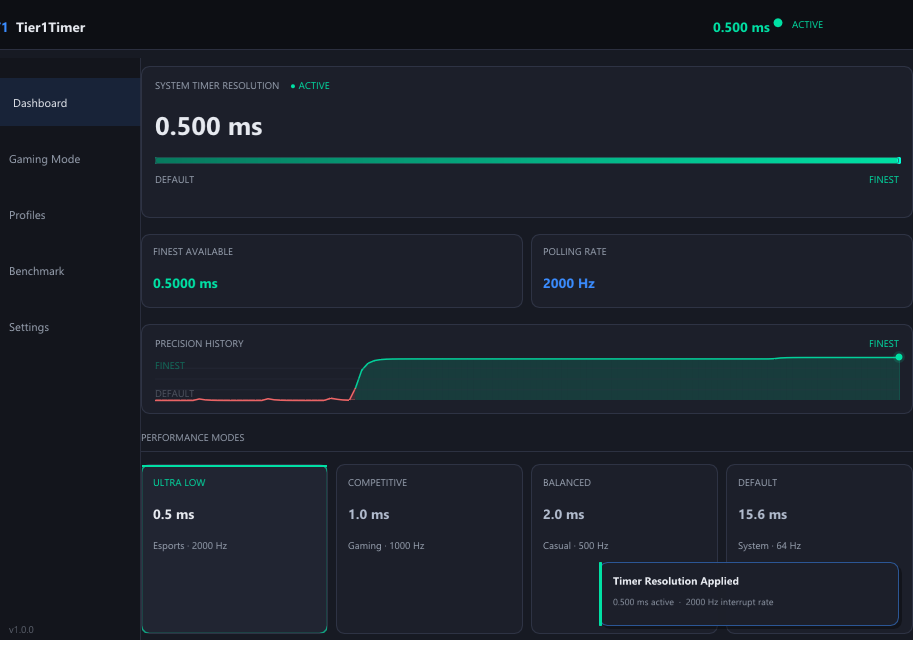
Tier1Timer’s dashboard shows the live timer resolution (0.500 ms here) and polling rate, with a precision history graph tracing the jump from the Windows default up to the finest setting.
What Is Timer Resolution?
Windows uses an interrupt-driven scheduler. Approximately every timer tick, the kernel wakes sleeping threads, re-evaluates priorities, advances multimedia timers, and services I/O callbacks. The timer resolution is the minimum time between those ticks. You’ll also see it called Windows timer resolution, platform timer resolution (the name Windows itself uses in powercfg energy reports), or the system timer interval — they all refer to the same thing: the global granularity of the Windows system timer.
| Resolution | Tick interval | Use case |
|---|---|---|
| 15.625 ms | ~15.6 ms | Windows default (power-saving) |
| 1.000 ms | 1.0 ms | Good gaming balance |
| 0.500 ms | 0.5 ms | Finest achievable on most hardware |
At the Windows default of 15.625 ms (64 ticks per second), any call to Sleep(1) — which games and drivers use constantly to yield the CPU — can overshoot by up to 15 ms. At 0.5 ms resolution, that overshoot drops to under 1 ms. The result: tighter frame delivery, faster input registration, and more consistent network timing.
Under the hood, applications request a finer resolution through the Windows API — timeBeginPeriod at the multimedia layer, or NtSetTimerResolution in the kernel, which is what dedicated tools call directly to reach 0.5 ms. The kernel honors the finest resolution any process has requested, and reverts to the power-saving default when no one is asking for more.
Why It Matters for Competitive Gaming
- Input pipeline latency — mouse and keyboard callbacks fire in shorter windows, reducing the time between physical input and in-game response
- Frame pacing — the GPU present queue is pumped more regularly, reducing micro-stutters
- Network stack timing — TCP ACK coalescing improves, helping with server-side latency in online games like Fortnite, Apex Legends, Valorant, and CS2
Lower-end PCs can also see a measurable FPS increase, because the system processes render and input events more frequently. Timer resolution pairs well with the rest of the latency chain — see our guides on minimizing input delay for competitive gaming and optimizing your monitor to reduce input delay for the other links in that chain.
Is Timer Resolution Safe?
Yes. Changing timer resolution adjusts a documented Windows system setting through official APIs — it doesn’t touch game files, inject into processes, or read game memory. That means it is not a game modification, and anti-cheat systems (Easy Anti-Cheat, Vanguard, BattlEye) do not flag it. It’s been widely used in the competitive scene for years; as always, check the rules of the title you play, but no major game treats it as cheating.
The only genuine trade-off is power consumption. A finer timer means the CPU wakes more often, which is why Windows defaults to 15.625 ms. On a desktop the difference is negligible; on a laptop expect roughly 5–15% higher power draw at 0.5 ms. A well-behaved tool also restores the default when you stop gaming — Tier1Timer has a safety watchdog that restores resolution even if the app crashes.
Does Timer Resolution Actually Work?
This is the most common question, and the honest answer is: yes, and you can measure it rather than take anyone’s word for it.
The mechanism is simple physics of scheduling: a Sleep(1) call at default resolution wakes anywhere from 1 ms to ~16 ms later, while at 0.5 ms resolution it wakes within about 1–1.5 ms. Games, drivers, and the network stack make thousands of these timed waits per second, so shrinking the worst-case wait tightens the whole pipeline.
What it does not do is magically add average FPS on a healthy high-end system. The measurable benefits are:
- Lower sleep overshoot and jitter — directly measurable with a benchmark
- More consistent frametimes — fewer micro-stutters, better 1% lows
- Lower end-to-end input latency — typically a few milliseconds, which matters most at high refresh rates
Tier1Timer ships with a Latency Benchmark that measures real Sleep(1ms) accuracy using QueryPerformanceCounter, so you can see the before/after numbers on your own hardware instead of trusting a YouTube thumbnail. Here is the difference measured on a real desktop. At the Windows default of 15.625 ms, a Sleep(1ms) call overshoots by 13,161 µs on average with heavy jitter:
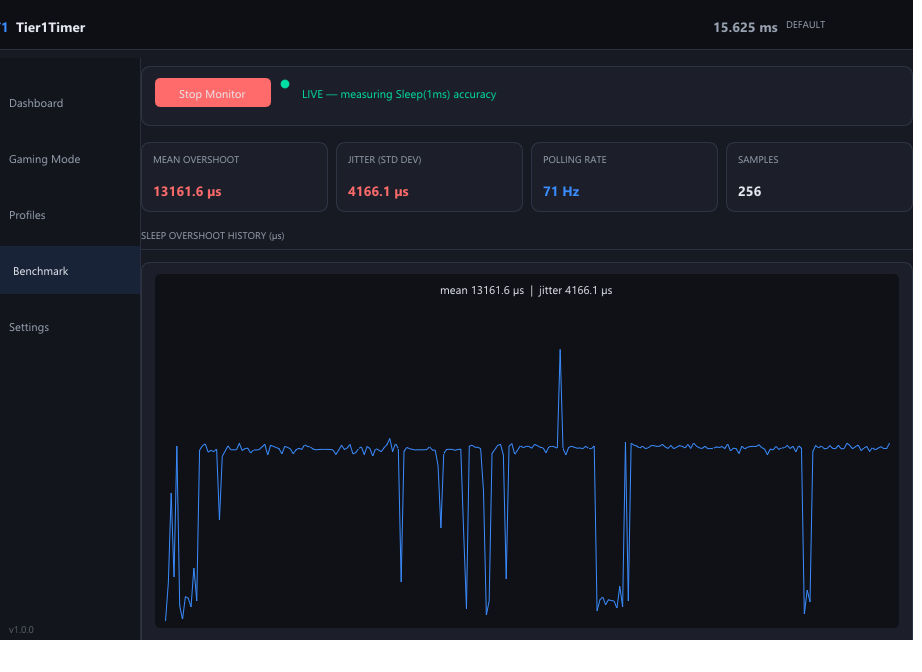
Before — at the 15.625 ms default, mean sleep overshoot is 13,161 µs with 4,166 µs of jitter. Those deep spikes are exactly the timing inconsistency that shows up as micro-stutter.
Switch to 0.5 ms and the same test settles to 499 µs mean overshoot with a fraction of the jitter — roughly a 26× improvement in worst-case timing:
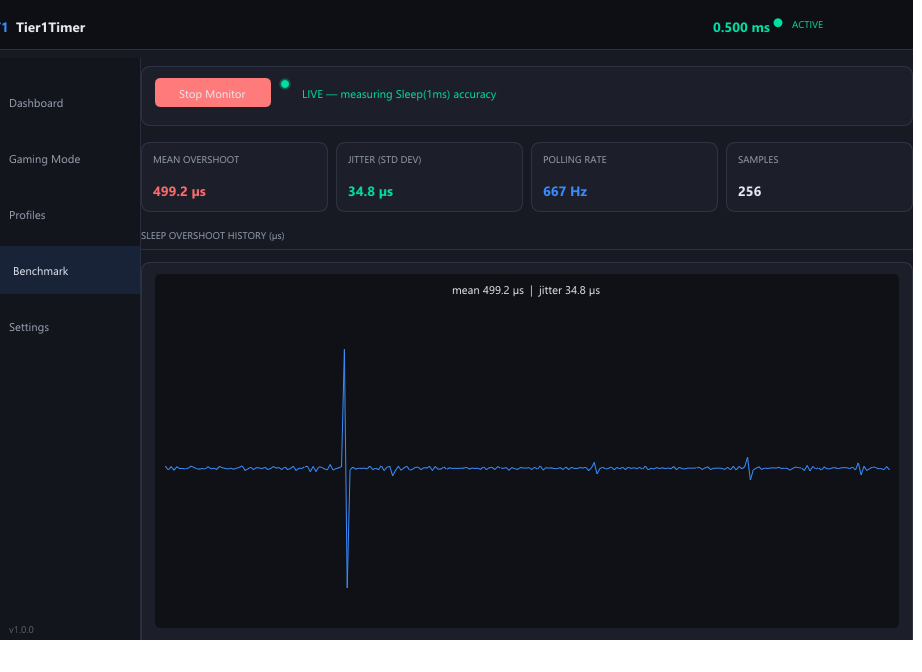
After — at 0.5 ms the same Sleep(1ms) test averages 499 µs overshoot with just 34.8 µs of jitter. That is the measurable proof, captured on Tier1Timer’s Benchmark tab.
If your real problem is intermittent stutter rather than steady latency, start with our guide to fixing lag spikes in games — timer resolution helps pacing, but it won’t fix a misbehaving driver.
How to Set Timer Resolution on Windows 10 vs Windows 11
The setting works on both, but Microsoft changed the rules twice, and it’s the source of most confusion (and most “timer resolution is dead” posts).
Windows 10 (pre-2004)
Classic behavior: timer resolution was global. If any process requested 0.5 ms, every process on the system ran at 0.5 ms. Running a small tool in the background was enough to speed up everything, including your game.
Windows 10 2004 and later
Starting with Windows 10 version 2004, Windows moved toward per-process timer resolution. A process that requests a finer resolution gets it for its own timed waits, but other processes are no longer automatically affected the same way. The practical takeaway: the high-resolution request still benefits the system-wide tick that games ride on, but you should keep the requesting tool running the entire time you play.
Windows 11
Windows 11 went a step further: it ignores timer resolution requests from processes whose windows are minimized or otherwise not visible. A naive timer tool minimized to the tray can silently lose its request — the classic TimerResolution.exe from 2007 falls into exactly this trap. This is the behavior change behind “timer resolution doesn’t work on Windows 11” claims.
It still works; the tool just has to be built for it. Tier1Timer accounts for the Windows 11 behavior so the 0.5 ms request stays honored while your game has focus, and Auto Mode re-applies the resolution whenever a profiled game launches.
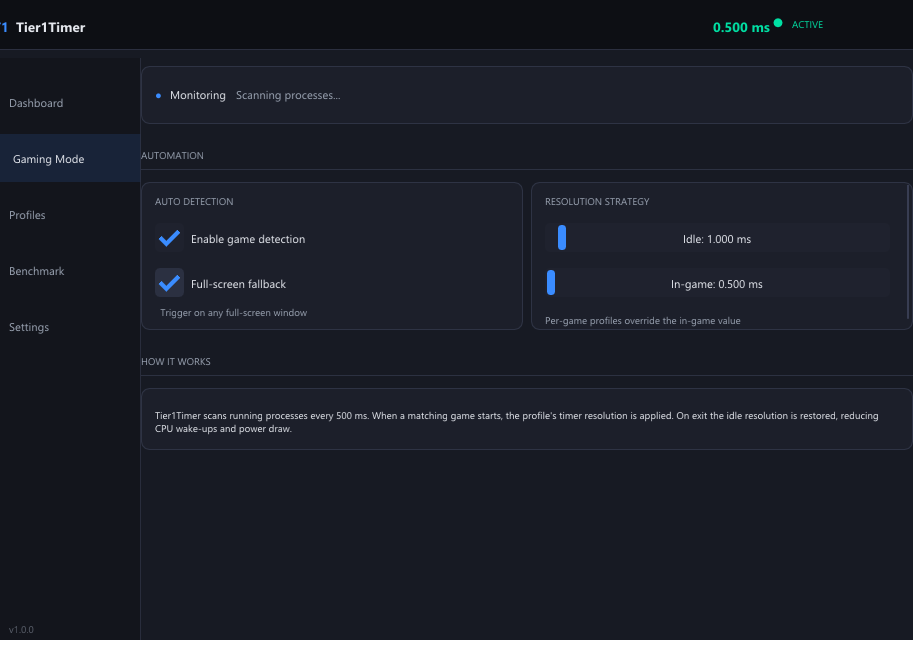
Gaming Mode watches for running games and applies 0.5 ms only while you play, dropping back to a power-saving 1.0 ms when you’re idle — so you get the benefit on Windows 11 without leaving the finest setting on around the clock.
Step by step (any Windows version)
- Download a timer resolution tool — we recommend Tier1Suite (free), or Tier1Timer if you want the timer control alone with no installer
- Check your current resolution on the dashboard (most systems idle at 15.625 ms)
- Apply 0.5 ms (or 1.0 ms on a laptop)
- Leave the tool running while you play — on Windows 10 2004+ and Windows 11, the request only holds while the requesting process is alive
Timer Resolution Commands and Tools
Checking your current timer resolution
There’s no built-in slider for this in Windows, but you can inspect it:
powercfg /energy /duration 5— run from an elevated command prompt, then open the generatedenergy-report.html. Under Platform Timer Resolution it lists the current resolution and every process that has requested a finer one. This is the quickest stock-Windows way to see who’s holding the timer down.- NtQueryTimerResolution-based tools — the kernel exposes current/minimum/maximum resolution via
NtQueryTimerResolution. Tools that call it (including Tier1Timer’s dashboard) show the live value, which is handy for confirming a change actually took effect.
Setting it
- TimerResolution.exe — Lucas Hale’s original 2007 utility. It still sets the resolution via
NtSetTimerResolution, but it predates the Windows 10 2004 and Windows 11 changes, has no tray-visibility handling, and offers only a single “Maximum” button. - Timer Resolution v2 / “timer resolution service” — community forks and services (such as SetTimerResolutionService) that run as a Windows service to keep the request alive at boot. They work, but a permanent 0.5 ms request wastes power when you’re not gaming, and a service has no awareness of which game is running.
- Tier1Suite — our free suite, and the version we recommend: the same timer engine as below, plus one-click stretched resolution, a 33-entry tweak catalog and a DPC/scheduling monitor. Signed MSI, installed per-machine.
- Tier1Timer — the same timer control on its own: live dashboard with one-click presets (0.5 / 1.0 / 2.0 ms or default), per-game Auto Mode that applies and reverts automatically, a built-in latency benchmark, and a watchdog that restores the default if anything crashes. A 1 MB exe, no installation required — the lightest option if timer resolution is all you want.
There is no supported registry key or bcdedit flag that pins timer resolution permanently — the useplatformtick/disabledynamictick tweaks floating around forums affect the tick source, not the requested resolution, and on modern Windows they generally do more harm than good.
Timer Resolution Per Game
The tweak is system-level, so it benefits every game, but it’s most popular in fast, server-tick-sensitive shooters:
- Fortnite — the classic use case. Fortnite players popularized timer resolution tools for edit/build responsiveness; combined with performance mode, 0.5 ms gives noticeably more consistent input timing. Tier1Timer ships a Fortnite profile so Auto Mode applies it the moment the game launches.
- Valorant — Vanguard does not flag timer resolution tools, since they don’t interact with the game at all. With Valorant’s low system requirements pushing very high FPS, finer timer granularity helps frametime consistency more than raw FPS.
- Apex Legends — Apex’s heavier frametimes benefit from smoother pacing; players on mid-range hardware report fewer micro-stutters with 0.5 ms applied.
The same applies to CS2, Overwatch 2, and any other competitive title — all of which have pre-configured Tier1Timer profiles.
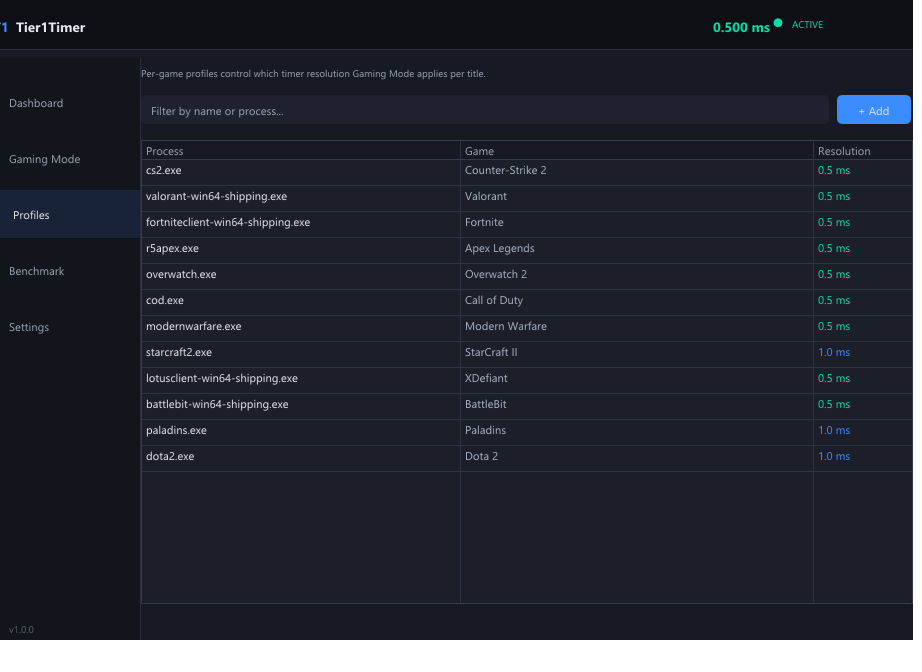
Tier1Timer ships with per-game profiles — CS2, Valorant, Fortnite, Apex Legends, Overwatch 2 and more — so Auto Mode applies the right resolution per title. You can add, edit, or remove any of them.
Introducing Tier1Suite
Tier1Suite is the free tool we build, and its Tier1Timer module gives you precise, safe control over Windows timer resolution. It goes well beyond the basic “set to maximum” approach:
- Dashboard — live current/minimum/maximum resolution display with one-click presets (0.5 ms, 1.0 ms, 2.0 ms, or default)
- Auto Mode — monitors running processes and automatically applies per-game resolution when you launch a game, then reverts to a low-power setting when you exit
- Game Profiles — pre-configured for CS2, Valorant, Fortnite, Apex Legends, Overwatch 2, and more; fully editable
- Latency Benchmark — measures real
Sleep(1ms)accuracy usingQueryPerformanceCounterso you can see the actual improvement on your hardware - Safety watchdog — multiple layers ensure resolution is always restored even if the app crashes
The same installer also carries one-click stretched resolution, a 33-entry tweak catalog where every entry has a working revert, and a DPC/scheduling-latency monitor — so you can confirm a change landed rather than take our word for it.
Prefer just the timer control? Tier1Timer is the same engine as a 1 MB portable exe, still free and still maintained.
How to Use It
- Download Tier1Suite and run it — or grab the standalone Tier1Timer exe if you want the timer control alone
- The dashboard immediately shows your system’s current, minimum, and maximum achievable resolution
- Click 0.5 ms to apply the finest resolution, or use Auto Mode to let it manage resolution automatically when games launch
- Minimize to the system tray; it runs silently in the background while you play
On a desktop PC the power impact is negligible. On a laptop, expect roughly 5–15% higher power draw at 0.5 ms — Auto Mode handles this by reverting to a low-power resolution when no game is running.
What to Expect
Results vary by system. Most users notice:
- Snappier, more immediate control response in fast-paced games
- Reduced micro-stutters and more consistent frame delivery
- On lower-end hardware, a measurable FPS increase
Use the built-in Latency Benchmark to measure the actual improvement before and after — it shows mean overshoot, jitter, min/max, and estimated interrupt frequency so you can verify the change is working on your specific hardware.
Timer resolution is one piece of the latency puzzle. To go further, see our guides on minimizing input delay for competitive gaming, optimizing your monitor for gaming, and fixing lag spikes in games.
Frequently asked questions
What is timer resolution in Windows?
Timer resolution is the granularity of the Windows system timer — how often the kernel wakes up to service timed events. The default is 15.625 ms (64 Hz); applications can request 1 ms or even 0.5 ms via NtSetTimerResolution, which makes frame pacing smoother and input feel more immediate in games.
Is timer resolution safe?
Yes. Raising timer resolution changes a documented Windows system setting rather than touching game files or memory, so it is not a game modification and anti-cheat systems do not flag it. The only real cost is slightly higher power draw, which mainly matters on laptops.
Does timer resolution still work on Windows 11?
Yes, with one caveat: since Windows 10 2004 the setting is managed per process, and Windows 11 ignores timer resolution requests from processes whose windows are minimized or fully hidden. The tool needs to stay running while you play — and on Windows 11, Tier1Timer keeps the high-resolution request honored even from the tray.
What timer resolution should I set?
0.5 ms is the finest resolution most hardware supports and the best choice for competitive gaming on a desktop. 1.0 ms is a good balance if you want to be conservative or you're on a laptop, where finer resolutions increase power draw by roughly 5–15%.
How do I check my current timer resolution?
Run 'powercfg /energy /duration 5' from an elevated command prompt and open the generated report — it lists the current timer resolution and which processes requested it. Tools that call NtQueryTimerResolution, like Tier1Timer's dashboard, show the current, minimum, and maximum values live.
Does timer resolution increase FPS?
It mainly improves frame pacing and input latency rather than raw average FPS. Your frame rate stays similar, but frames arrive more consistently, which feels noticeably smoother. Lower-end systems can see a small measurable FPS gain.