How to Enable TPM in ASUS BIOS for Windows 11
Updated Published
On this page
If your ASUS gaming rig fails the Windows 11 TPM 2.0 requirement, you probably just need to flip a few settings in BIOS. This guide walks you through enabling fTPM / PTT on modern ASUS boards without nuking your overclocks or RAID setups.
This guide is written specifically for ASUS motherboards (ROG, TUF, PRIME, ProArt, etc.) using modern UEFI BIOS. If you have MSI, Gigabyte, or ASRock, use those brand‑specific TPM guides instead.
Quick checklist before you touch BIOS
- Back up important data: Enabling TPM should be safe, but always assume something can go wrong.
- Know your current boot mode: Windows 11 wants UEFI + GPT, not Legacy/CSM.
- Have a keyboard and monitor connected directly (no remote access).
- Update Windows first so it can detect TPM after you change BIOS.
Step 1 – Enter the ASUS UEFI BIOS
- Fully shut down your PC.
- Power it on and repeatedly tap
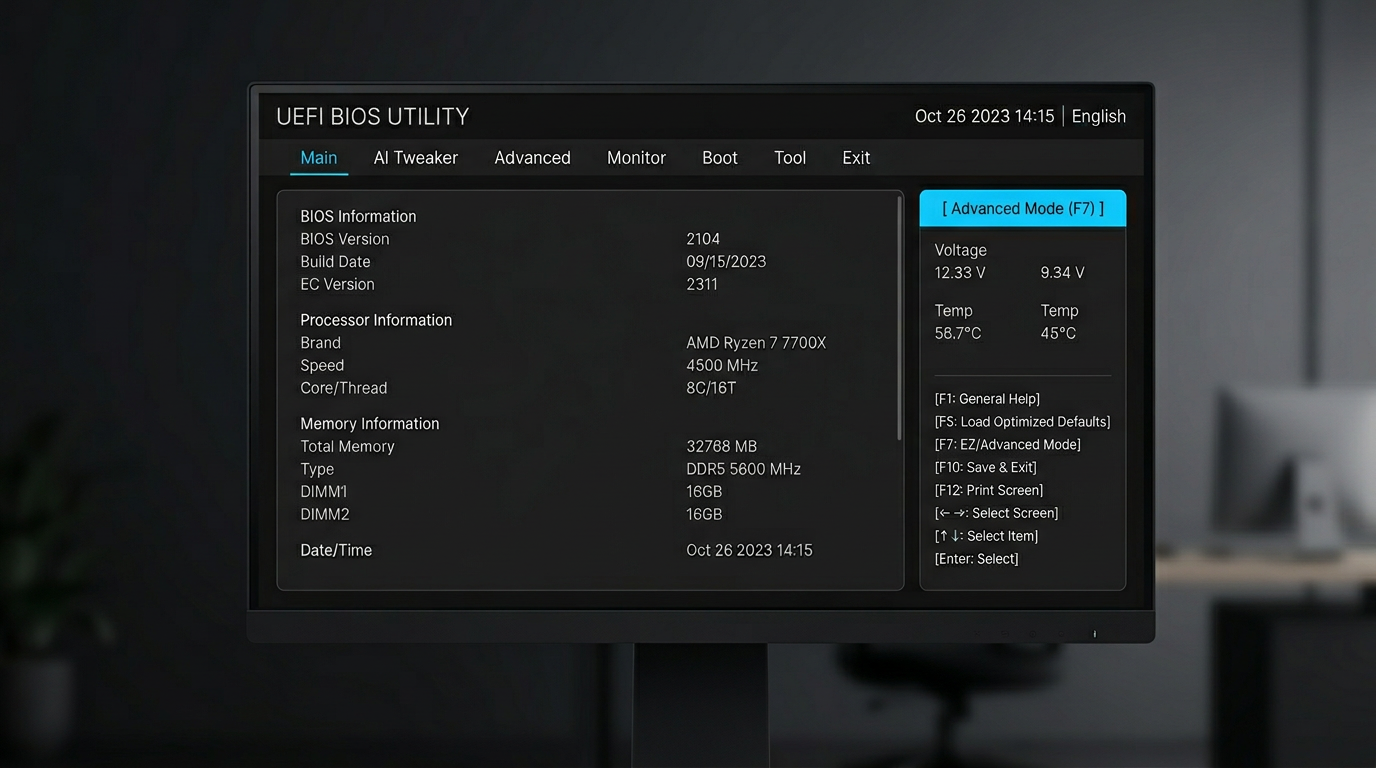
Del(sometimesF2) as soon as you see the ASUS logo. - You should land on the EZ Mode home screen.
You can switch between modes:
- F7 → Advanced Mode
- F7 again → back to EZ Mode
For most TPM options we’ll be working in Advanced Mode.
Step 2 – Find the TPM setting on modern ASUS boards
Depending on your CPU platform, TPM can show up with slightly different names:
- Intel 8th gen and newer: look for PTT (Intel Platform Trust Technology)
- AMD Ryzen platforms: look for AMD fTPM or AMD TPM
From Advanced Mode:
- Go to the Advanced tab at the top.
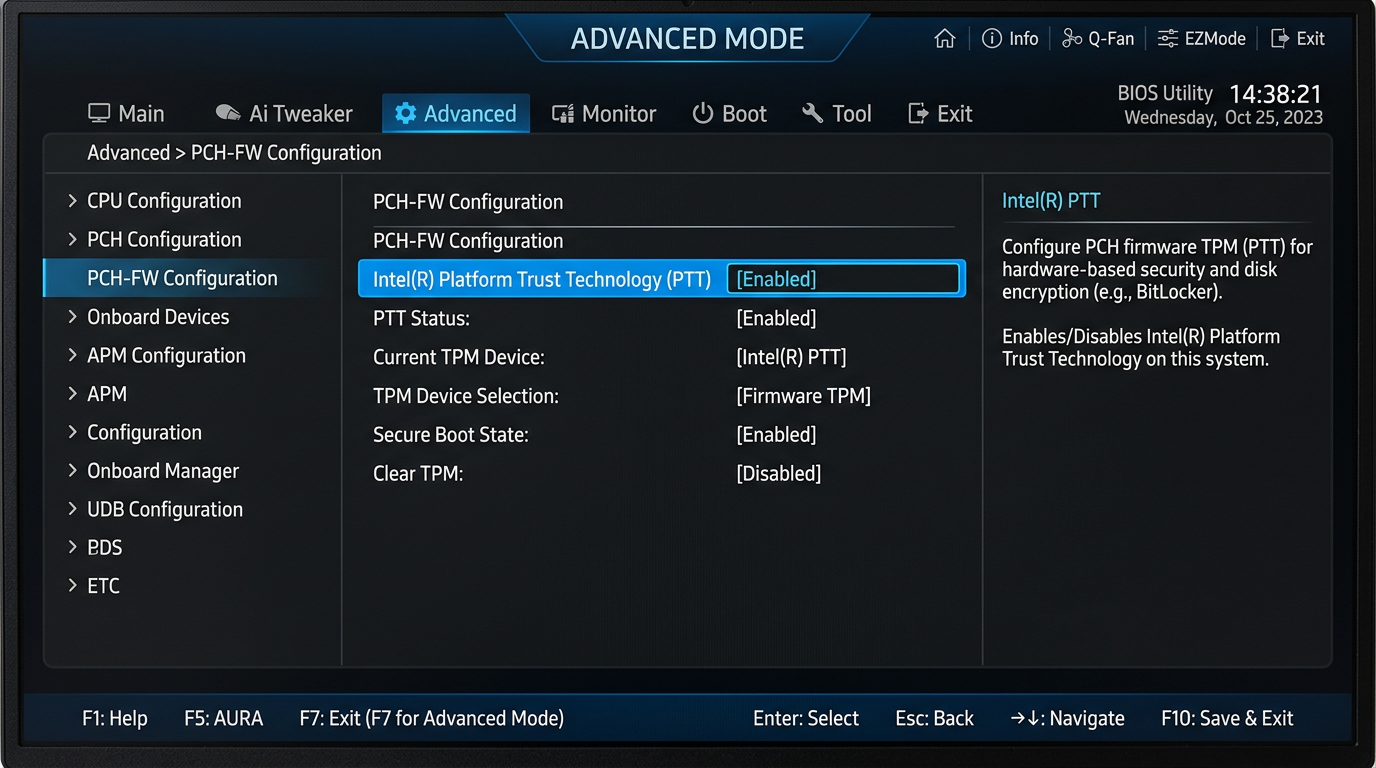
- Open PCH-FW Configuration, Trusted Computing, or AMD fTPM configuration (the exact wording varies by board and BIOS version).
- Look for one of:
- TPM Device Selection
- PTT (Intel)
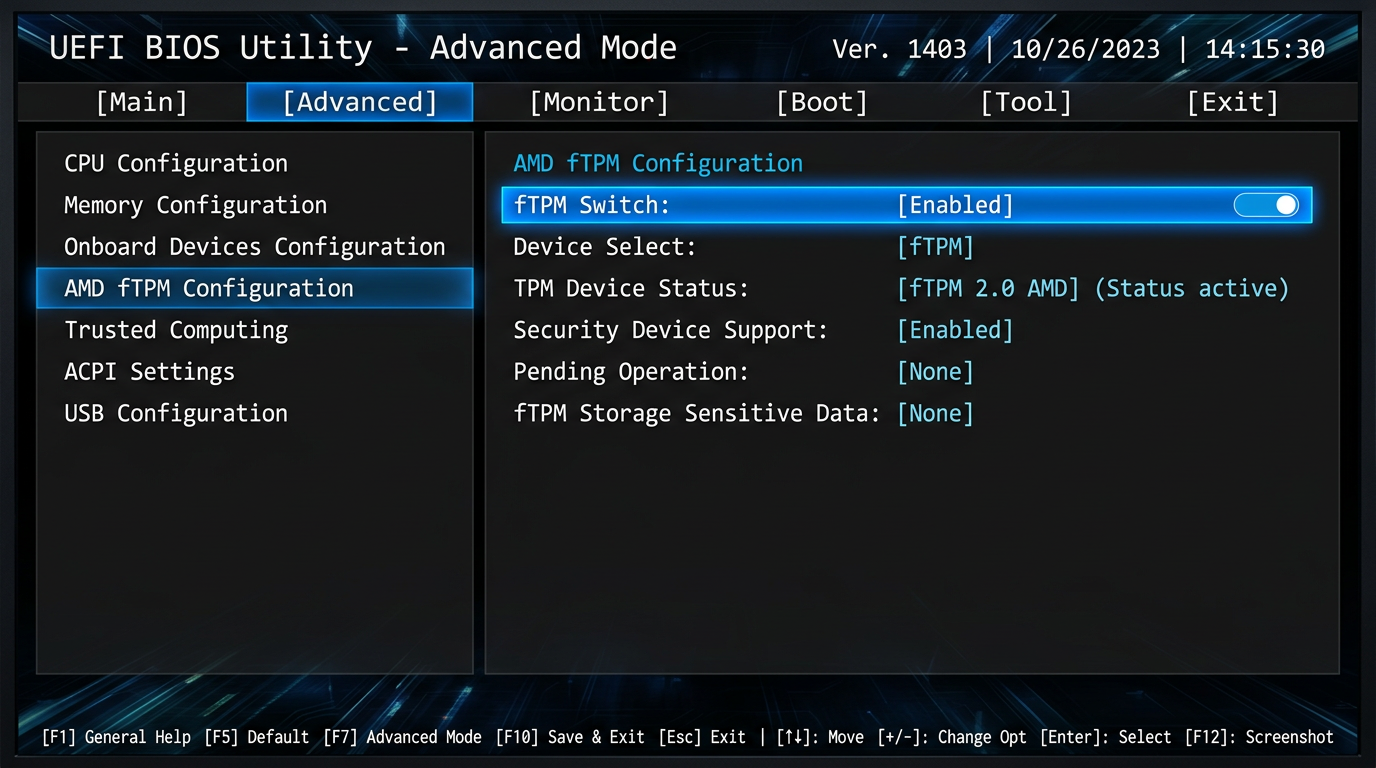
- AMD fTPM switch
Example layouts:
- ASUS ROG / TUF Intel boards
Advanced → PCH-FW Configuration → PTT - ASUS ROG / TUF AMD boards
Advanced → AMD fTPM configuration → AMD fTPM
Step 3 – Turn on fTPM / PTT in ASUS BIOS
Once you’ve found the correct page:
On Intel ASUS motherboards
- Set PTT to Enabled.
- If you see TPM Device Selection, choose Firmware TPM instead of Discrete TPM (unless you have a physical TPM module installed).
- Leave any “Clear TPM” options disabled – you do not want to clear TPM here.
On AMD ASUS motherboards
- Set AMD fTPM (or Firmware TPM) to Enabled.
- Leave dTPM or Discrete TPM disabled unless you know you’re using a physical module.
- Again, do not use any “Clear fTPM” or “Reset fTPM” options unless you understand the consequences.
Discrete TPM vs Firmware TPM – which should you choose?
When the ASUS BIOS shows TPM Device Selection with Discrete TPM and Firmware TPM options:
- Firmware TPM is the right choice for almost everyone. It’s the TPM built into your CPU (Intel PTT or AMD fTPM), it fully meets the Windows 11 TPM 2.0 requirement, and it costs nothing.
- Discrete TPM (dTPM) only works if you’ve physically installed a TPM module in the board’s TPM header. If you select Discrete TPM without a module, Windows will report no TPM at all.
A discrete module is marginally more tamper-resistant, which matters for some corporate setups, but for a gaming PC Firmware TPM is the practical answer — there’s no performance or security downside that affects you.
Step 4 – Confirm Secure Boot and UEFI mode
Windows 11 also expects Secure Boot and UEFI:
- In Advanced Mode, go to the Boot tab.
- Make sure CSM (Compatibility Support Module) is Disabled on modern builds.
- If disabling CSM breaks booting, your drive might be using MBR instead of GPT – convert it before trying again.
- Go to Secure Boot:
- Set OS Type to Windows UEFI mode.
- Set Secure Boot to Enabled (or leave it on Standard if that’s the only option).
If you’re unsure about CSM and drive layout, handle TPM first, then come back and tune CSM/Secure Boot after verifying Windows still boots.
Step 5 – Save and reboot correctly
- Press F10 to bring up the Save & Exit dialog.
- Double‑check that your changes include PTT / fTPM = Enabled.
- Select OK and let the board reboot into Windows.
If your system hangs on a black screen or loops, power it off, then:
- Re‑enter BIOS (
Del/F2) - Revert only the last change you made (usually CSM or Secure Boot), leave TPM enabled
Step 6 – Verify TPM from inside Windows 11
Once you’re back in Windows:
- Press
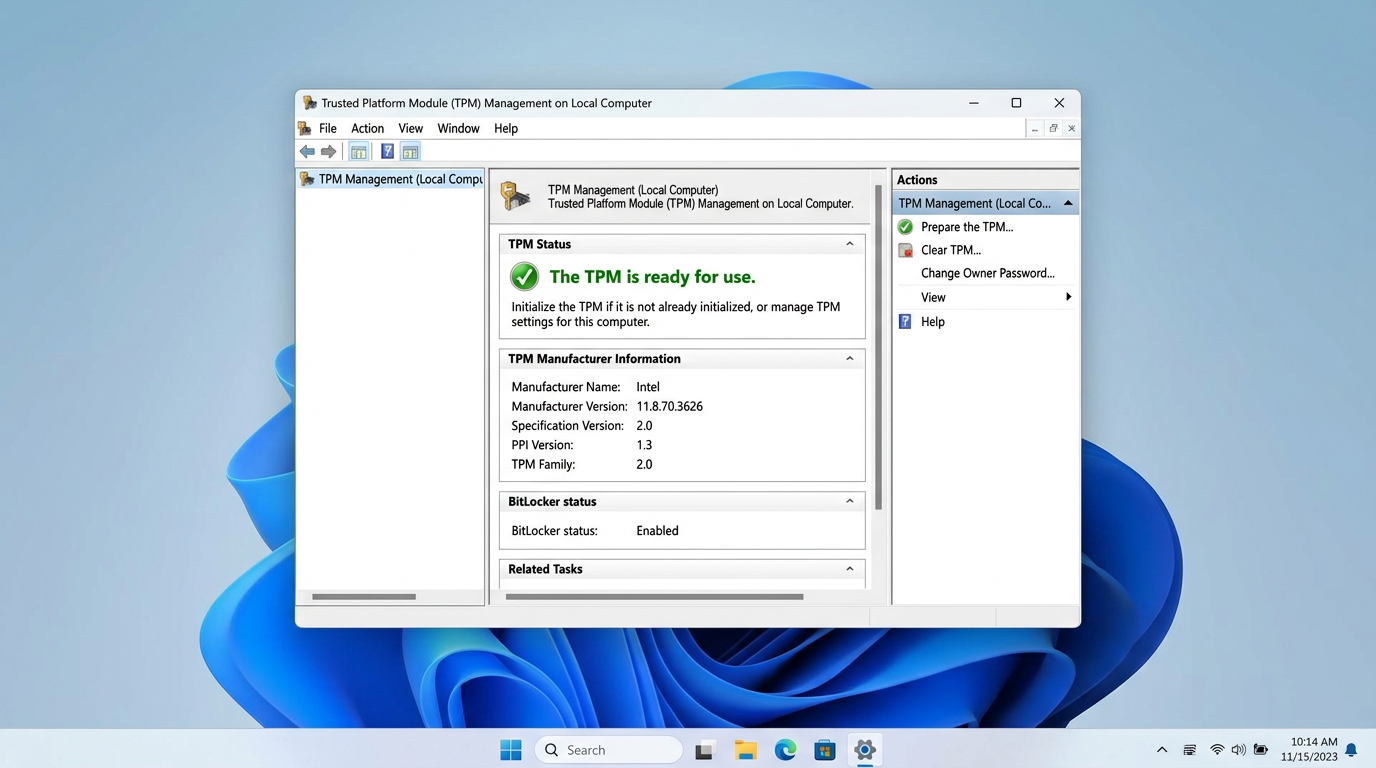
Win + R, typetpm.msc, and press Enter. - In the TPM Management window, check:
- Status: “The TPM is ready for use”
- TPM Manufacturer Information → Specification Version: should show 2.0
If you still see “TPM not found”:
- Confirm you actually Saved & Exited BIOS, not just exited.
- Double‑check the correct option (PTT vs fTPM) is enabled on your ASUS board.
- Update to the latest BIOS version from ASUS if you’re on a very old release.
Troubleshooting on specific ASUS lineups
ROG Strix / ROG Crosshair / ROG Maximus
These usually expose all firmware features by default:
- Use Advanced Mode → Advanced → PCH-FW Configuration (Intel) or AMD fTPM configuration (AMD).
- Some high‑end boards have extra security menus; if you see a separate Trusted Computing page, enable TPM there as well.
ASUS TUF Gaming
TUF boards often group security options together:
- Look under Advanced → Trusted Computing first.
- If you don’t see TPM options, update to a modern Windows 11‑ready BIOS from ASUS Support.
ASUS PRIME / ProArt / business‑class boards
These sometimes ship with TPM disabled for compatibility:
- Check Advanced → PCH-FW Configuration and Advanced → Trusted Computing.
- On older Intel PRIME boards, you might have to enable Intel Platform Trust Technology directly.
ASUS laptops (Vivobook, Zenbook, ROG / TUF laptops)
ASUS laptops almost always ship with TPM 2.0 already enabled, so if Windows 11 complains, check Windows first with tpm.msc. If the laptop BIOS really has it off:
- Tap F2 at the ASUS logo to enter the laptop BIOS.
- Look under Security → TPM State (or Advanced → Trusted Computing, depending on model) and set it to Enabled.
- Save with F10.
Laptop BIOSes are much simpler than motherboard UEFI — if you don’t see a TPM option at all, it’s typically permanently enabled and managed by Windows.
How to disable TPM in the ASUS BIOS
To turn TPM back off (rare, but people do it when troubleshooting fTPM stutter or repurposing a board):
- Suspend or disable BitLocker in Windows first, or you’ll be prompted for a recovery key at the next boot.
- Enter BIOS, press F7 for Advanced Mode.
- Set PTT to Disabled (Intel) under Advanced → PCH-FW Configuration, or set TPM Device Selection away from Firmware TPM under Advanced → AMD fTPM configuration (AMD).
- Save with F10.
Remember Windows 11 and anti-cheats like Vanguard expect TPM to be present, so plan to re-enable it.
Verify TPM 2.0 in Windows
Win + R→tpm.msc→ Specification Version 2.0, “The TPM is ready for use”.- Or Settings → Privacy & security → Windows Security → Device security → Security processor.
Does enabling TPM affect gaming performance?
On modern ASUS systems, firmware TPM has essentially zero impact on gaming FPS or latency:
- It runs alongside your CPU, but the load is negligible.
- It mainly handles encryption keys and secure boot checks, not real‑time game logic.
- You should not see any measurable performance loss in titles like Fortnite, Apex Legends, or Warzone.
If you’re optimizing your whole rig for competitive play, combine this guide with:
- How to Enable Secure Boot in ASUS BIOS for Windows 11 — required alongside TPM by many anti-cheats
- How to minimize input delay for competitive gaming
- The ultimate guide to timer resolution for gaming + Tier1Suite
Other motherboard brands
Running a different board? Use the matching guide:
- How to Enable TPM in Gigabyte BIOS for Windows 11
- How to Enable TPM in MSI BIOS for Windows 11
- How to Enable TPM in ASRock BIOS for Windows 11
Summary – ASUS TPM settings for Windows 11
To recap for ASUS boards:
- Enable PTT (Intel) or AMD fTPM (AMD) under Advanced → PCH-FW Configuration / AMD fTPM configuration / Trusted Computing.
- Keep Firmware TPM selected unless you use a discrete module.
- Use UEFI + Secure Boot for full Windows 11 compatibility.
- Verify inside Windows with
tpm.mscand look for TPM 2.0, “ready for use”.
Once this is set, your ASUS gaming PC should pass the Windows 11 PC Health Check without hacks, ready for the latest features and security updates.
Frequently asked questions
Where is Intel Platform Trust Technology in the ASUS BIOS?
Press F7 for Advanced Mode, then go to Advanced → PCH-FW Configuration and set PTT to Enabled. On AMD boards the equivalent is Advanced → AMD fTPM configuration → TPM Device Selection → Firmware TPM.
Should I pick Discrete TPM or Firmware TPM on an ASUS board?
Choose Firmware TPM unless you physically installed a TPM module in the board's TPM header. Firmware TPM (Intel PTT or AMD fTPM) is built into the CPU, fully satisfies Windows 11, and costs nothing.
How do I enable TPM 2.0 in BIOS on an ASUS TUF Gaming board?
TUF Gaming boards use the standard ASUS UEFI: press Del at boot, F7 for Advanced Mode, then Advanced → PCH-FW Configuration → PTT (Intel) or Advanced → AMD fTPM configuration → Firmware TPM (AMD). Save with F10.
How do I enable TPM on an ASUS laptop?
Most ASUS laptops ship with TPM 2.0 already enabled. If Windows 11 doesn't see it, enter BIOS with F2 at boot and check Security → TPM State (or Advanced → Trusted Computing) and set it to Enabled.
How do I disable TPM in the ASUS BIOS?
Suspend BitLocker first, then set PTT (Intel) or AMD fTPM (AMD) back to Disabled in the same Advanced menu. Windows 11 and several anti-cheats require TPM, so only disable it deliberately.