What Motherboard Do I Have?
Updated Published
On this page

Whether you’re planning a CPU upgrade, checking RAM compatibility, looking for BIOS updates, or troubleshooting, the first thing you need is your exact motherboard model. Here are four ways to find it, fastest first.
Method 1: Command Prompt
-
Type
cmdin the Windows search bar and press Enter. -
Run:
wmic baseboard get product,manufacturer -
The output shows your motherboard’s manufacturer and model.
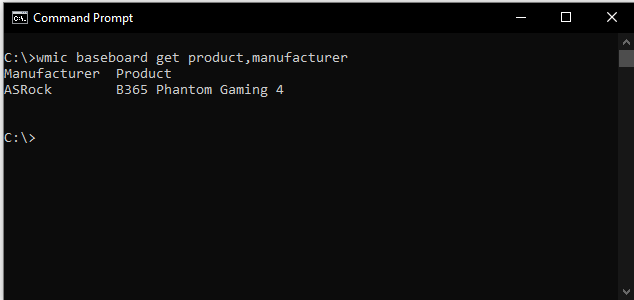
On newer Windows 11 builds where wmic is removed, use PowerShell instead:
Get-CimInstance Win32_BaseBoard | Select-Object Manufacturer, ProductMethod 2: System Information
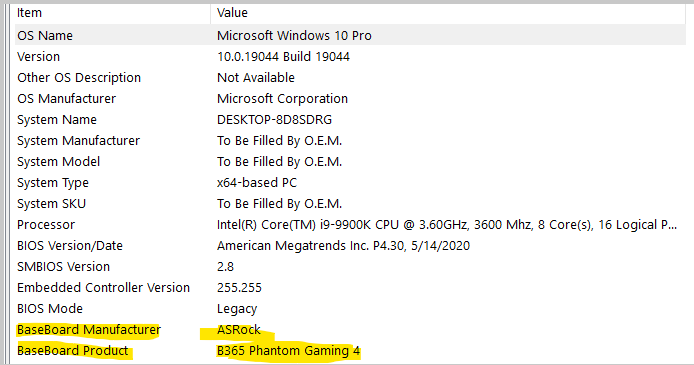
- Type System Information in the Windows search bar and open it.
- Under System Summary, find BaseBoard Manufacturer, BaseBoard Product, and BaseBoard Version.
- Or type
baseboardin the search field at the bottom of the window to jump straight there.

Method 3: CPU-Z
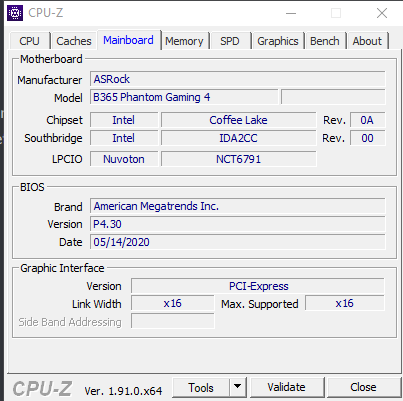
Third-party tools show more detail, including chipset and BIOS version — useful when checking CPU upgrade compatibility.
- Download CPU-Z from the official developer: cpuid.com/softwares/cpu-z.html
- Open the Mainboard tab for manufacturer, model, chipset, and BIOS info.
Method 4: Look at the board
With the system powered off and unplugged, open the case. Most motherboards have the model number printed directly on the PCB, usually near the CPU socket or between the PCIe slots.
On a Mac?
Macs don’t expose a motherboard model — use the Model Identifier instead: Apple menu → About This Mac → System Report, under Hardware Overview. In Terminal: system_profiler SPHardwareDataType.
What’s next
Once you know your board, you can check supported CPUs and RAM speeds on the manufacturer’s spec page and grab the latest BIOS. Useful follow-ups:
Frequently asked questions
What's the fastest way to find my motherboard model?
Open Command Prompt and run 'wmic baseboard get product,manufacturer'. On newer Windows 11, use PowerShell instead: 'Get-CimInstance Win32_BaseBoard | Select-Object Manufacturer, Product'.
How do I find my motherboard using System Information?
Type 'System Information' in Windows search and open it. Under System Summary, find BaseBoard Manufacturer, BaseBoard Product, and BaseBoard Version. Or search 'baseboard' in the search field to jump there.
What's CPU-Z and how does it help find motherboard info?
CPU-Z is a third-party tool that shows motherboard details including manufacturer, model, chipset, and BIOS version. Download from cpuid.com and open the Mainboard tab. It's useful for checking CPU upgrade compatibility.
Can I find my motherboard model by opening my PC?
Yes. Power off and unplug, then open the case. Most motherboards have the model number printed directly on the PCB, usually near the CPU socket or between PCIe slots.
Why do I need to know my motherboard model?
You need it for CPU upgrade compatibility, checking RAM speeds, finding BIOS updates, and troubleshooting hardware issues. Your motherboard's manual and support page provide all this information.