Best Stretch Res for Fortnite — 1440×1080, 1620×1080 & How to Get It
Updated Published
On this page
Stretched resolution in Fortnite makes enemy models wider and can make tracking feel easier, which is why a lot of competitive players still prefer it over native 16:9. This guide covers the best stretched res values and exactly how to force them so they don’t reset every time you launch the game.
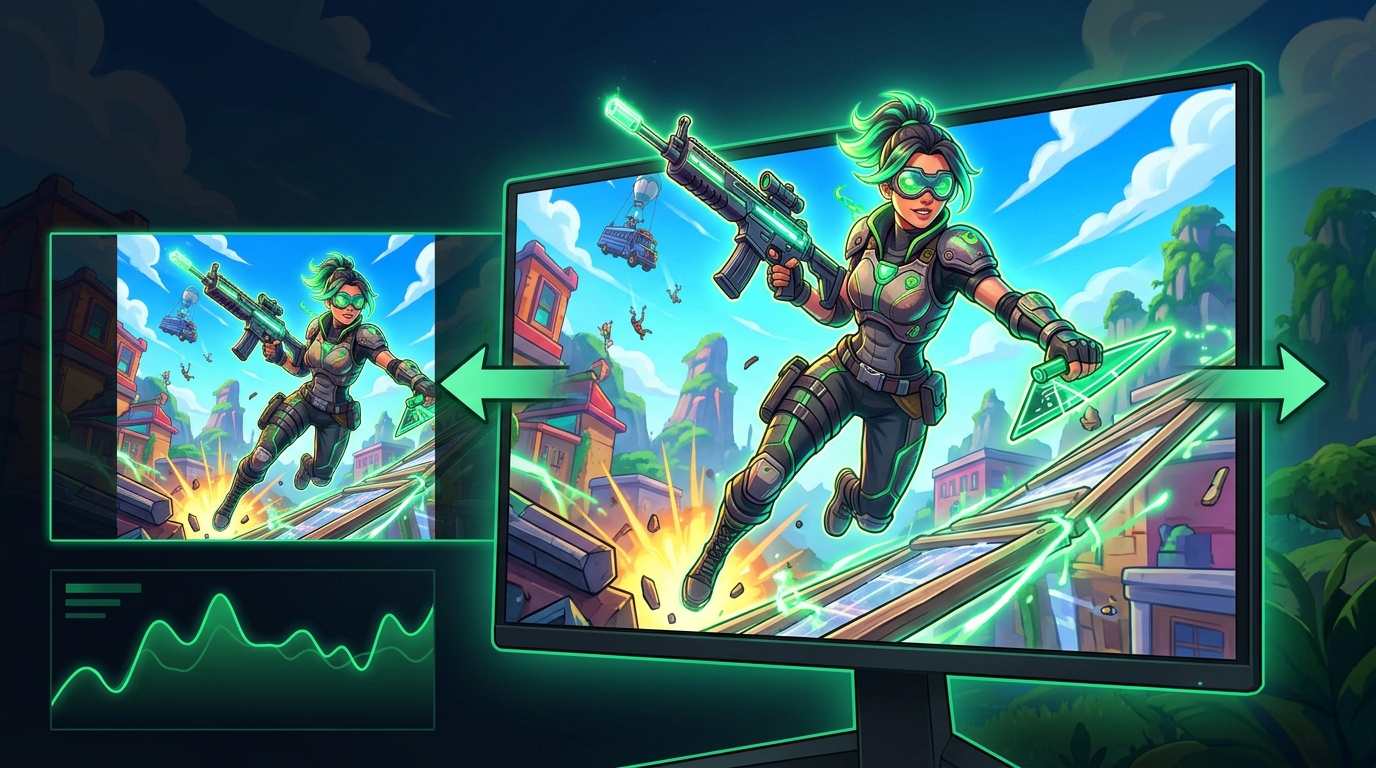
Stretched res is a personal preference tool, not a magic aim upgrade. Try it, compare it to native, and keep whatever feels more consistent for you.
Best stretch res for Fortnite
| Base resolution | Stretched to | Aspect | Feel |
|---|---|---|---|
| 1440 x 1080 | 1920 x 1080 | 4:3 | Classic, widest models |
| 1620 x 1080 | 1920 x 1080 | 3:2 | Balanced stretch |
| 1728 x 1080 | 1920 x 1080 | 16:10 | Subtle stretch, more FPS |
1440 x 1080 is the most popular competitive choice — it gives the widest player models while keeping a clean 1080p output height.
Skip the manual setup: Tier1Suite creates this custom resolution and sets full-panel GPU scaling for you, with a 15-second auto-revert if anything looks off. Get Tier1Suite free →
Step 1 – Create the custom resolution
Fortnite only lets you pick resolutions your system already exposes, so you create the stretched res at the GPU level first.
NVIDIA
- Open NVIDIA Control Panel → Change resolution.
- Click Customize → Create Custom Resolution.
- Enter your chosen base (e.g.
1440 x 1080) and your monitor’s refresh rate. - Test and save.
AMD
- Open AMD Software → Settings → Display.
- Next to Custom Resolutions, click Create.
- Add
1440 x 1080at your refresh rate and save.
For a deeper, monitor-level method using CRU (EDID override), see How To Get Custom Resolution / Stretch Res for Fortnite, Apex Legends, Halo, and any other game.
Step 2 – Force GPU scaling to “Full screen”
This is what actually stretches the image instead of showing black bars.
NVIDIA
- NVIDIA Control Panel → Adjust desktop size and position.
- Scaling mode: Full-screen.
- Perform scaling on: GPU.
- Tick Override the scaling mode set by games and programs.
AMD
- AMD Software → Display → GPU Scaling: On.
- Scaling Mode: Full Panel (stretched).
Step 3 – Apply it inside Fortnite
- Launch Fortnite → Settings → Video.
- Window Mode: Fullscreen (stretched res will not work in windowed/borderless).
- Resolution: select your custom res (e.g.
1440 x 1080). - Apply.
If stretched res keeps reverting
This is the most common complaint, and it’s almost always one of these:
- Window Mode is set to Windowed or Borderless — it must be Fullscreen.
- GPU scaling is set to Aspect ratio or No scaling instead of Full-screen / Full Panel.
- “Override the scaling mode set by games” is unticked on NVIDIA.
- A driver update reset your scaling — re-check after GPU driver updates.
Stretched res and FPS
Lower stretched resolutions like 1440 x 1080 render fewer pixels than native 1920 x 1080, so you usually gain a little FPS too. For the full settings pass, use How to Get the Highest FPS on Fortnite OG.
Related guides
- How To Get Custom Resolution / Stretch Res for Fortnite, Apex Legends, Halo, and any other game
- How to Get the Highest FPS on Fortnite OG
- How to Minimize Input Delay for Competitive Gaming
- The Ultimate Guide to Timer Resolution for Gaming + Tier1Suite
- Best Monitor for Fortnite
The best Fortnite stretched resolution is the one you can aim with consistently — most players land on 1440 x 1080. Create it at the GPU level, force full-screen scaling, set Fortnite to Fullscreen, and it will stick.
Frequently asked questions
How do I get stretched resolution in Fortnite?
First create a custom resolution like 1440x1080 in NVIDIA Control Panel or AMD Software, because Fortnite only shows resolutions your system already exposes. Then enable full-screen GPU scaling so the image fills your monitor. Finally launch Fortnite, set Window Mode to Fullscreen, and select your custom resolution in the Video settings.
Does stretched resolution increase FPS in Fortnite?
Yes. Lower resolutions like 1440x1080 render fewer pixels than native 1920x1080, so you typically gain FPS alongside the wider player models. The gain is most noticeable on GPU-limited systems and compounds well with low graphics settings. Even 1728x1080 provides a modest FPS bump while offering a subtle stretch.
Is stretched resolution allowed in Fortnite competitive?
Epic Games banned stretched resolution for official competitive events, so you cannot use it in FNCS or official cups where the game enforces 16:9. For casual play, pubs, and Arena there is no ban or account penalty. The restriction only applies in sanctioned tournament lobbies where Epic controls the settings.
What stretched resolution do Fortnite pros use?
1440x1080 is the most popular competitive pick because it produces the widest player models at a clean 4:3 aspect ratio stretched to a 1080p output. Some players run 1620x1080 for a 3:2 feel, and 1728x1080 suits those who want a subtle stretch with sharper detail. Outside of official events most top players default to 1440x1080.
Why does my stretched resolution keep reverting or show black bars in Fortnite?
The most common cause is Window Mode not set to Fullscreen, since Windowed or Borderless modes prevent GPU scaling from applying. GPU scaling must be set to Full-screen or Full Panel rather than Aspect Ratio or No scaling. On NVIDIA the Override the scaling mode set by games checkbox must also be ticked, and a driver update can reset this setting silently.