Custom Resolution Greyed Out or Not Showing Up? Stretched Resolution Fix
Published
On this page
If the Custom button is greyed out in your GPU control panel, or you created a stretched resolution and it simply won’t appear in your game, the display itself is fine — something is blocking the custom mode from being created or presented. This guide walks through why the option gets disabled and how to add a stretched resolution that actually shows up.
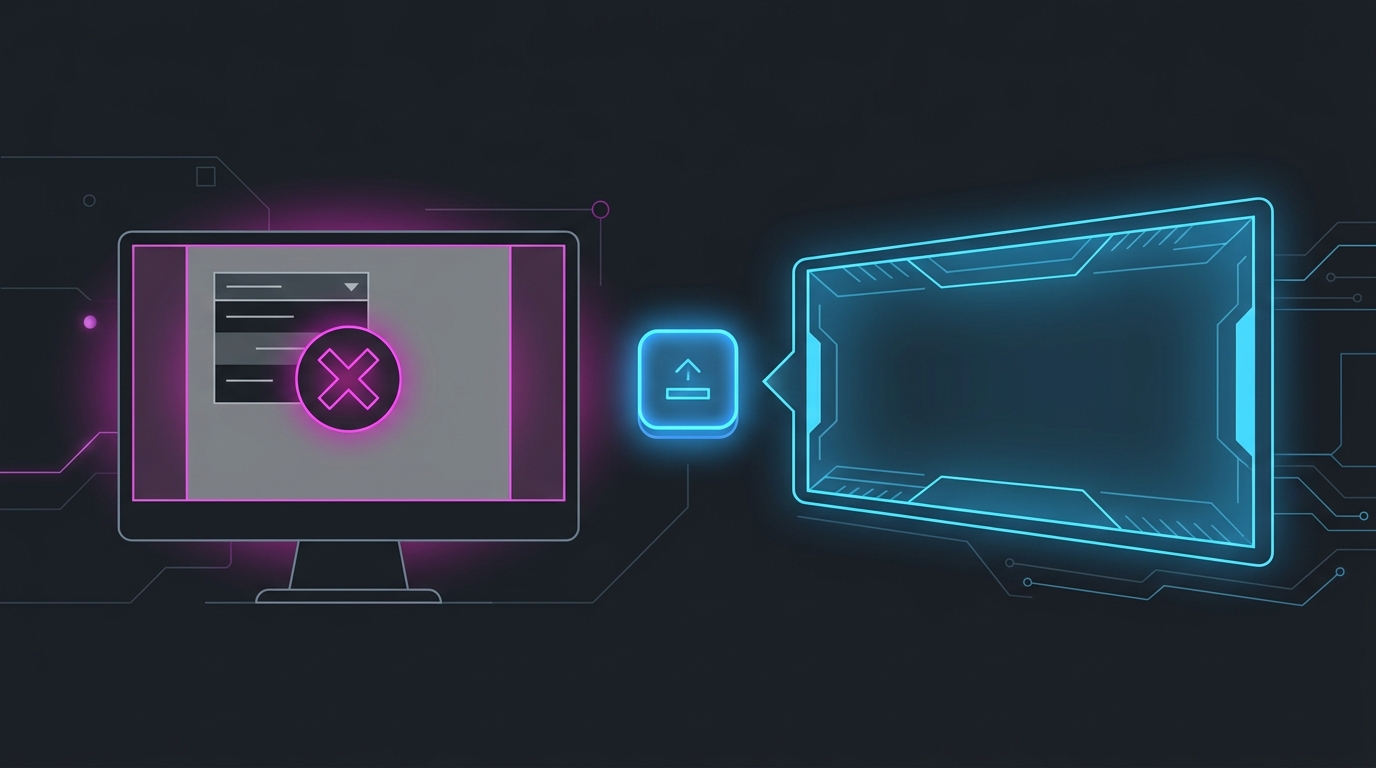
Two different problems get lumped together here: the control panel won’t let you create a custom resolution (greyed-out button), and a resolution you did create won’t appear in-game. They have different causes, so fix the one you’re actually hitting.
Fix 1 — The “Custom” button is greyed out (NVIDIA)
If Customize → Create Custom Resolution is disabled in NVIDIA Control Panel, work through these in order:
- Switch scaling to GPU. Go to Adjust desktop size and position → set mode to Full-screen → Perform scaling on: GPU. When scaling is set to Display, the panel often won’t let you author a mode it can’t drive, so the Custom button stays greyed. Apply, then try again.
- Check what you’re plugged into. Some USB-C hubs, docks, KVM switches and cheap adapters strip custom timings and lock the mode list. Connect the monitor directly to the GPU with DisplayPort or HDMI and retry.
- Remove a locking monitor driver. A vendor monitor INF can pin the EDID mode list. In Device Manager → Monitors, set the display to Generic PnP Monitor, then reopen the control panel.
- Run the control panel as administrator if the Create/Test buttons never enable.
Fix 2 — The button is greyed out (AMD Radeon)
AMD hides stretched resolutions behind its scaling toggles rather than a single “Custom” button:
- Open AMD Software → Settings → Display.
- Enable GPU Scaling.
- Set Scaling Mode to Full panel (this is what removes black bars and stretches the image edge to edge).
- Add the custom resolution under Custom Resolutions on the Display page. If it’s disabled, GPU Scaling is usually still off, or you’re connected through an adapter that blocks it (see step 2 above).
For the full breakdown of these two scaling modes, see GPU Scaling vs Display Scaling for Stretched Resolution.
Fix 3 — The resolution exists but won’t show up in-game
You created the resolution, the control panel accepted it, but it’s missing from the game’s dropdown. Almost always one of these:
- You’re in Borderless or Windowed mode. Both inherit the desktop resolution, so a custom mode never appears in-game. Switch the game to exclusive Fullscreen, which reads the full Windows mode list.
- The desktop isn’t set to the stretched resolution. For games that mirror the desktop, set the desktop to your stretched res first (Windows Settings → Display → Resolution), then launch.
- The game forces native on launch. Some titles re-detect the panel every start — use launch options to pin it. See Stretched Resolution Keeps Resetting? How to Make It Stick.
Fix 4 — It worked, then vanished after a driver update
A clean driver install or a DDU wipe clears driver-level custom resolutions and resets your scaling toggles. After any GPU driver update, expect to re-create the resolution and re-enable Full-panel / GPU scaling — they don’t carry over. If you update drivers often, this is the single most common reason a stretch that “used to work” is suddenly gone.
Skip the greyed-out menus entirely
Every fix above exists because the manual path — control panel scaling toggles, custom-timing dialogs, adapter quirks, driver resets — is fragile. If you’d rather not fight it, Tier1Suite creates the custom resolution and sets full-panel GPU scaling in a single step, so you never touch the disabled buttons or the scaling menus, and it re-applies cleanly after driver updates.
Summary
- Greyed-out Custom button → switch scaling to GPU / Full panel, connect the monitor directly (not through a hub/KVM), and drop a locking monitor driver to Generic PnP.
- Res won’t appear in-game → use exclusive Fullscreen, and set the desktop to the stretched res for games that mirror it.
- Disappears after a driver update → re-create the resolution and re-enable full-panel scaling.
- Or skip the control panel entirely with a one-click tool.
Related guides
Frequently asked questions
Why is the custom resolution option greyed out in NVIDIA Control Panel?
The most common causes are having GPU scaling set to display/monitor rather than GPU, being connected through a device that blocks custom timings (some USB-C hubs, KVMs or older adapters), a monitor driver that locks the mode list, or trying to add it while the display is running a scaling mode that the panel won't override. Switch scaling to Perform scaling on: GPU and the Customize button usually becomes available.
Why doesn't my stretched resolution show up in the game?
A resolution you created at the driver level only appears in a game if the game reads the full Windows mode list and you are in exclusive Fullscreen. Borderless and Windowed modes inherit the desktop resolution instead, so the custom res never appears in the in-game dropdown. Set the game to Fullscreen, or set your desktop to the stretched resolution first.
How do I enable GPU scaling so I can add a custom resolution?
In NVIDIA Control Panel go to Adjust desktop size and position, choose Full-screen, and set Perform scaling on: GPU. In AMD Software open Display, enable GPU Scaling, and set Scaling Mode to Full panel. With GPU scaling on, the driver can present a stretched resolution to the full panel instead of letterboxing it.
Why does my custom resolution disappear after a driver update?
A clean GPU driver install or a DDU wipe clears driver-level custom resolutions and resets scaling settings. After updating, the resolution and the Full-panel/GPU scaling toggle are gone until you re-create them. Re-add the resolution and re-enable full-panel scaling, or use a tool that re-applies both for you.
Is there a way to add a stretched resolution without fighting the control panel?
Yes. A dedicated tool can create the custom resolution and set full-panel GPU scaling in one step, skipping the greyed-out buttons and scaling menus entirely. That avoids the usual causes of a disabled Custom button and applies a clean, no-black-bars stretched resolution directly.